Skip to content
AI & Software Engineering

Explore AI, AI Agents, software engineering, and the technologies shaping the future.

  • Home
  • AI & Agents
  • System Architecture
  • Project Management
  • Projects
  • Tutorials
  • Tech History
AI & Software Engineering

Explore AI, AI Agents, software engineering, and the technologies shaping the future.

Unity in Practice 0005 – Create C# Script

WCSee, May 8, 2025May 18, 2025

✅ Step-by-Step to Create the Script:

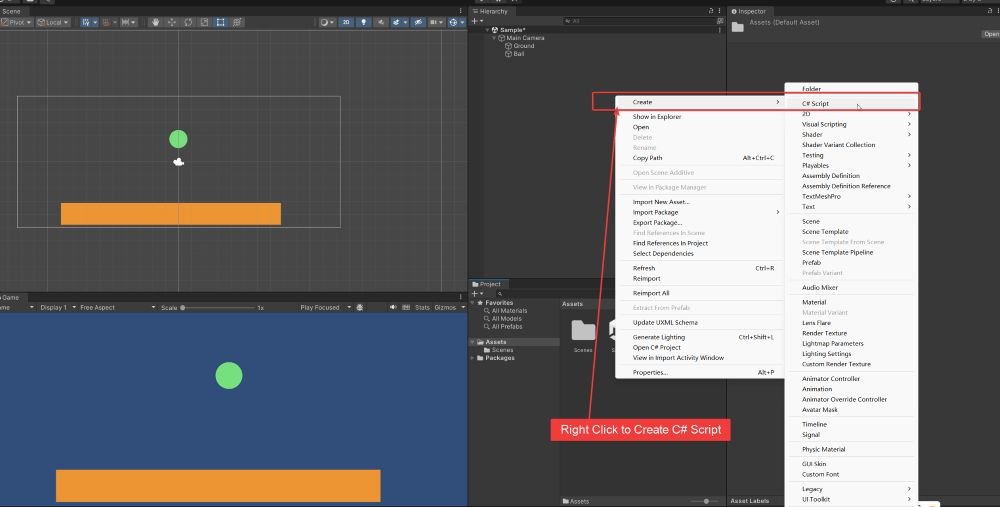
  1. In Unity, right-click in the Project window → Create > C# Script.
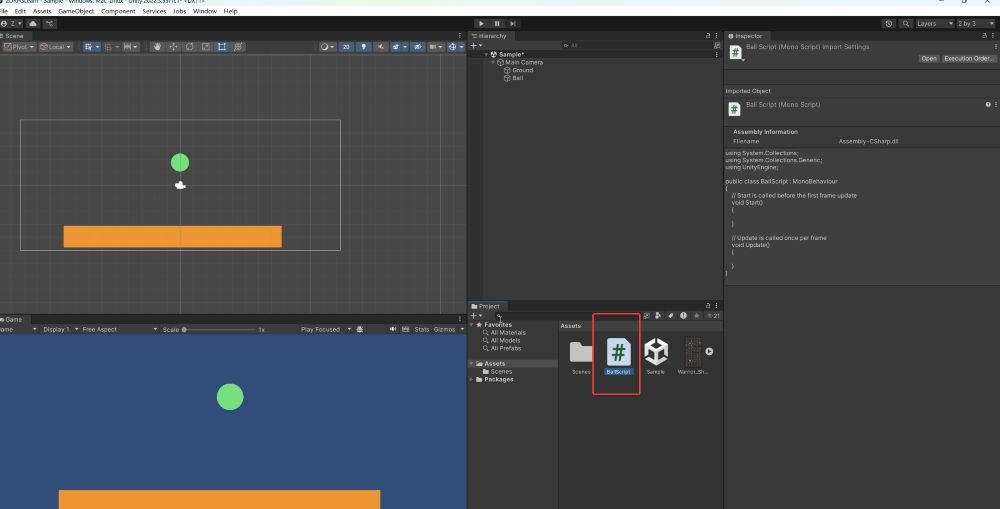
  2. Name the script: BallScript.

Double click the C# script file to open the code via Visual Studio (refer to previous article for the installation: Unity #0002 – Install Unity and Visual Studio – Wonderful Code See)

When you create a new C# script in Unity (e.g., BallScript.cs), Unity automatically generates a default template to help you get started. Here’s what the default code looks like:

using System.Collections;
using System.Collections.Generic;
using UnityEngine;

public class BallScript : MonoBehaviour
{
    // Start is called before the first frame update
    void Start()
    {
        
    }

    // Update is called once per frame
    void Update()
    {
        
    }
}

🧠 Explanation:

  • using statements: Import Unity-related namespaces.
  • BallScript class: Inherits from MonoBehaviour, which is required for all scripts attached to GameObjects.
  • Start(): Called once when the script is first run (good for initialization).
  • Update(): Called once per frame (used for regular per-frame logic like input handling).

This template is intentionally minimal so you can build custom behavior step by step.

Please follow and like us:

RSS
Facebook
Facebook
fb-share-icon
X (Twitter)
Visit Us
Follow Me
Tweet
Pinterest
Pinterest
fb-share-icon
Post Views: 308

Related posts:

Unity in Practice 0002 – Install Unity and Visual Studio Unity in Practice 0007 – Very First Unity C# Code to Move and Jump a 2D Ball Unity in Practice 0014 – Unity 2D Dash and Dash Cooldown with Time.deltaTime Unity in Practice 0009 – How to Use Sprite Sheets in Unity for 2D Animation and UI Unity in Practice 0011 – Player Jump with Ground Check in Unity Unity in Practice 0012 – Blend Tree in Unity Unity in Practice 0010 – Flipping a 2D Character Horizontally in Unity Unity in Practice 0008 – Encapsulation and Inspector Access with Unity’s [SerializeField]
Tech Notes Unity C# ScriptUnity Game Development

Post navigation

Previous post
Next post

Leave a Reply Cancel reply

Your email address will not be published. Required fields are marked *

Recent Posts

  • Chapter 5 — Major AI Agent Architecture Patterns
  • Chapter 4 — What Is an Agent Harness?
  • Chapter 3 — The Agent Loop: The Core Execution Cycle of an AI Agent
  • AI Agent Architecture and Engineering Practice Guide
  • Chapter 2 — LLM Application Architecture: Core Components and Engineering Foundations
  • Chapter 1: Rethinking AI Agents
  • The Key Milestones in the History of Artificial Intelligence (2026.08)
  • Building a Python-based AI Agent with LangGraph and OpenRouter: A Hands-On Guide
  • System Architecture Design: What Is It Really “Designing”? Understanding Through a Building Analogy
  • When Data Exceeds Memory: Choosing Between Pandas, Dask, and DuckDB for Efficient Analytics

Recent Comments

  • WCSee on Chapter 1: Rethinking AI Agents
  • WCSee on Chapter 2 — LLM Application Architecture: Core Components and Engineering Foundations
  • WCSee on AI Agent Architecture and Engineering Practice Guide
©2026 AI & Software Engineering | WordPress Theme by SuperbThemes
Manage Consent
To provide the best experiences, we use technologies like cookies to store and/or access device information. Consenting to these technologies will allow us to process data such as browsing behavior or unique IDs on this site. Not consenting or withdrawing consent, may adversely affect certain features and functions.
Functional Always active
The technical storage or access is strictly necessary for the legitimate purpose of enabling the use of a specific service explicitly requested by the subscriber or user, or for the sole purpose of carrying out the transmission of a communication over an electronic communications network.
Preferences
The technical storage or access is necessary for the legitimate purpose of storing preferences that are not requested by the subscriber or user.
Statistics
The technical storage or access that is used exclusively for statistical purposes. The technical storage or access that is used exclusively for anonymous statistical purposes. Without a subpoena, voluntary compliance on the part of your Internet Service Provider, or additional records from a third party, information stored or retrieved for this purpose alone cannot usually be used to identify you.
Marketing
The technical storage or access is required to create user profiles to send advertising, or to track the user on a website or across several websites for similar marketing purposes.
  • Manage options
  • Manage services
  • Manage {vendor_count} vendors
  • Read more about these purposes
View preferences
  • {title}
  • {title}
  • {title}