
Unity’s Editor is made up of modular windows and tools that can be rearranged, docked, and customized to suit your workflow. Understanding them is essential for efficient development.
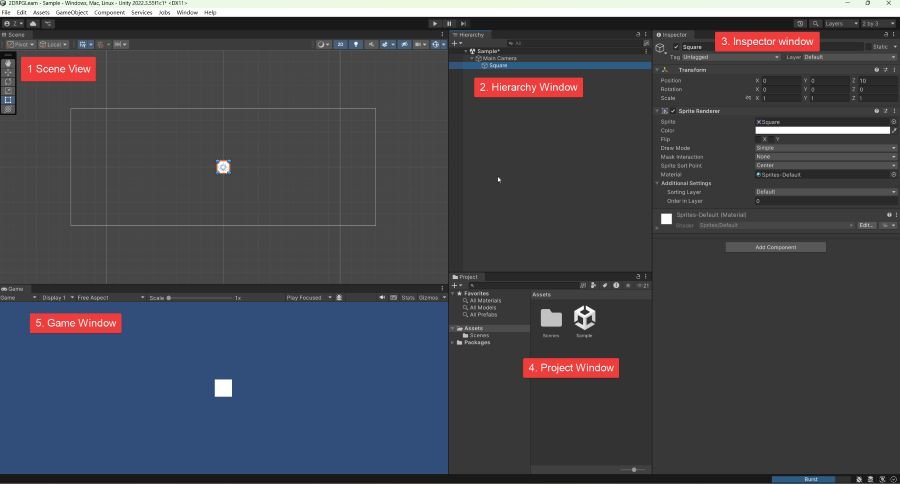
( The above layout is configured via: Window > Layouts > 2 by 3 )
🎬 1. Scene View
- A 3D/2D workspace where you position and manipulate GameObjects.
- Offers tools like Move, Rotate, Scale, and Rect Tool.
- Use for level design, environment layout, and navigation.
📜 2. Hierarchy Window
- Lists all GameObjects in the current Scene in a tree structure.
- Reflects the scene’s composition in real-time.
- Supports nesting (parent-child relationships) for organizing objects.
🧩 3. Inspector Window
- Displays the properties and components of the currently selected object.
- You can modify scripts, materials, colliders, etc.
- It’s how you attach or configure behaviors and data.
📁 4. Project Window
- Shows all files (assets, scripts, scenes) in your Unity project.
- Organized by folders—this is your main interface to project files.
- Drag assets from here into the Scene or Hierarchy.
📷 5. Game View
- Renders the Scene through the main camera.
- Simulates how the game will look to the player.
- Use Play, Pause, and Step buttons to test gameplay.
🛠️ Unity Tools and Features
🧰 6. Toolbar
- Top bar with:
- Play, Pause, Step buttons
- Transform tools (Move, Rotate, Scale)
- Layers and layout customization
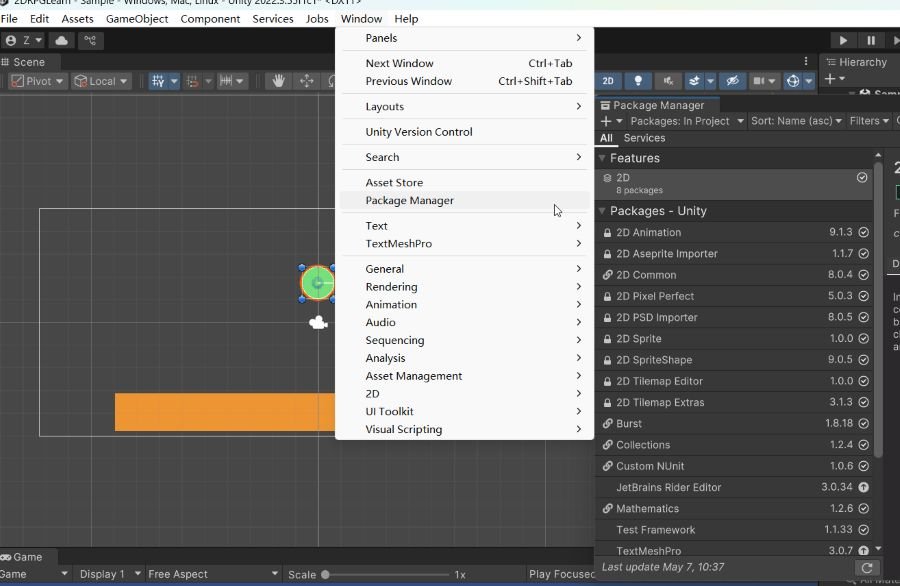
📦 7. Package Manager
- Access via:
Window > Package Manager - Install Unity packages like Input System, TextMeshPro, URP, Cinemachine.
- Manage custom tools or third-party plugins.
🧱 8. Console Window
- View logs, warnings, and error messages from scripts.
- Debug output via
Debug.Log,Debug.Warning,Debug.Error. - Clickable stack traces make debugging easy.
🗃️ 9. Asset Store (or Unity Asset Manager)
- Access thousands of models, tools, and systems (Unity Asset Store).
- As of 2023+, most assets are now downloaded via the Unity Hub or browser.
🧙 Advanced Editor Tools
✏️ 10. Animator
- Visual tool for managing animation states.
- Use transitions, blend trees, and state machines for characters and objects.
🗺️ 11. Profiler
- Analyze CPU, GPU, rendering, and memory usage in real time.
- Crucial for optimization and performance tuning.
🎨 12. Shader Graph & VFX Graph
- Visual scripting tools to build shaders and visual effects.
- Requires URP or HDRP rendering pipelines.
⚙️ 13. Editor Extensions / Custom Tools
- Build your own tools using
EditorWindow,CustomEditor, andScriptableObject. - Automate level generation, asset management, etc.
🎮 Unity Editor Shortcut Guide (Windows & macOS)
Master these essential shortcuts to speed up your Unity workflow across scene editing, object management, scripting, and debugging.
🧭 General Editor Shortcuts
| Action | Windows | macOS |
|---|---|---|
| Play / Pause Game | Ctrl + P | Cmd + P |
| Pause Game | Ctrl + Shift + P | Cmd + Shift + P |
| Step Frame | Ctrl + Alt + P | Cmd + Option + P |
| Save Scene | Ctrl + S | Cmd + S |
| Open Project Settings | Ctrl + , | Cmd + , |
🧱 Scene View Shortcuts
| Action | Shortcut |
|---|---|
| Move Tool | W |
| Rotate Tool | E |
| Scale Tool | R |
| Rect Tool (UI / 2D) | T |
| Hand Tool (Pan View) | Q |
| Focus on Selected Object | F |
| Toggle 2D/3D Mode | Scene View Toolbar (2D) |
| Zoom In / Out | Mouse Scroll / Alt + Right Click |
🧩 Hierarchy & Project Window
| Action | Shortcut |
|---|---|
| Rename Object or Asset | F2 |
| Delete Selected | Delete / Backspace |
| Create Empty GameObject | Ctrl + Shift + N / Cmd + Shift + N |
| Duplicate Selection | Ctrl + D / Cmd + D |
| Undo | Ctrl + Z / Cmd + Z |
| Redo | Ctrl + Y / Cmd + Shift + Z |
🧪 Console & Scripting
| Action | Shortcut |
|---|---|
| Open Console | Ctrl + Shift + C |
| Clear Console Log | Ctrl + Shift + L |
| Open Script in Editor | Double-click / Ctrl + Enter |
🧭 Custom Layouts and Workflow Tips
- Save Layouts: Customize the window setup and save layouts from the top-right corner.
- Dock/Floating Panels: Drag windows to rearrange or float for multi-screen setups.
- Context Menus: Right-click in Project/Hierarchy for quick actions.
Please follow and like us:










Related posts:
 Unity Game Development – Systematic Learning Roadmap (2025 Edition)
Unity in Practice 0009 – How to Use Sprite Sheets in Unity for 2D Animation and UI
Unity in Practice 0006 – Very first C# code to demonstrate how to capture input
Unity in Practice 0002 – Install Unity and Visual Studio
Unity Game Development – Systematic Learning Roadmap (2025 Edition)
Unity in Practice 0009 – How to Use Sprite Sheets in Unity for 2D Animation and UI
Unity in Practice 0006 – Very first C# code to demonstrate how to capture input
Unity in Practice 0002 – Install Unity and Visual Studio
 How to Check SSL/TLS Versions and Cipher Suites on macOS and Windows
Unity in Practice 0007 – Very First Unity C# Code to Move and Jump a 2D Ball
Unity in Practice 0008 – Encapsulation and Inspector Access with Unity’s [SerializeField]
Unity in Practice 0013 – Physical Material 2D Introduction
How to Check SSL/TLS Versions and Cipher Suites on macOS and Windows
Unity in Practice 0007 – Very First Unity C# Code to Move and Jump a 2D Ball
Unity in Practice 0008 – Encapsulation and Inspector Access with Unity’s [SerializeField]
Unity in Practice 0013 – Physical Material 2D Introduction