
To implement a player jump with a condition and ground check in Unity (using C#), you’ll typically use Rigidbody physics and a ground detection method like Physics.Raycast, Collider overlap checks, or Unity’s CharacterController.isGrounded.
Here’s a basic example using Rigidbody and a ground check via Physics.Raycast.
🎮 Step-by-Step: Setup Ground Layer in Unity
✅ 1. Add a Layer and Name it “Ground”
- In Unity, go to the top right of the Inspector panel and click the Layer dropdown.
- Click “Add Layer…”.
- In an empty slot (e.g., User Layer 8+), enter
Groundas the name. - Press Enter to confirm.

✅ 2. Assign Layer to Objects
- Select both your VGround and HGround GameObjects in the Hierarchy.
- In the top right corner of the Inspector, click the Layer dropdown.
- Choose
Ground. - When prompted, click “Yes, change children” (if they have children).
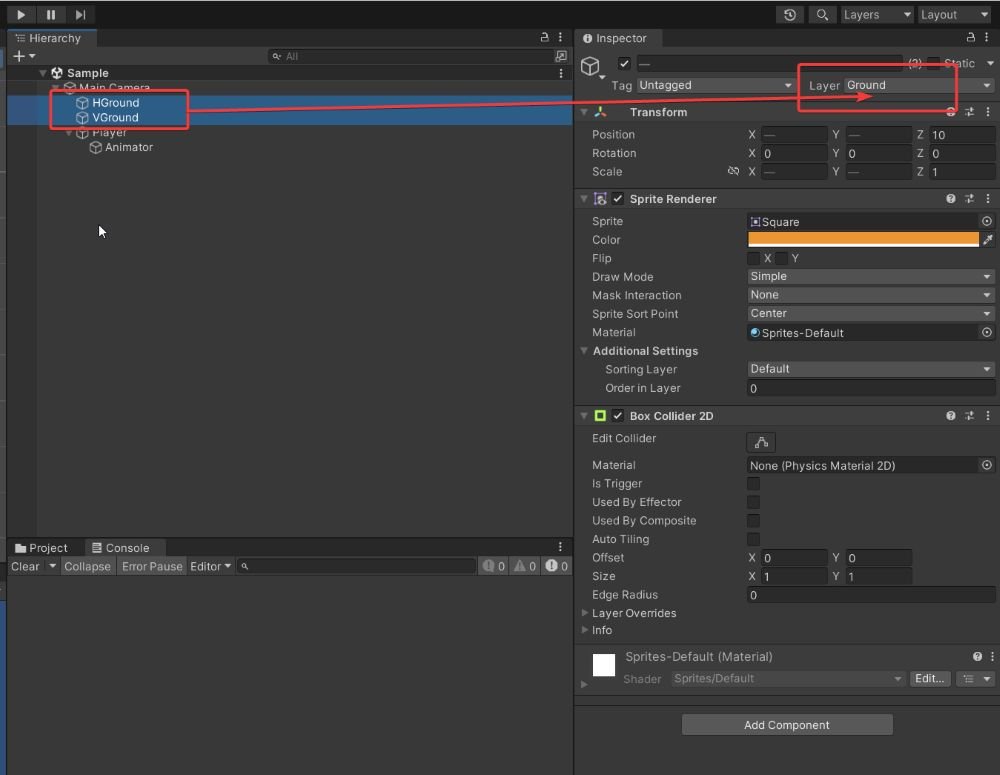
✅ 3. Assign Layer to Objects
Add these fields for configuring in the Unity Inspector:
[SerializeField] private LayerMask groundLayer;
[SerializeField] private float groundCheckDistance;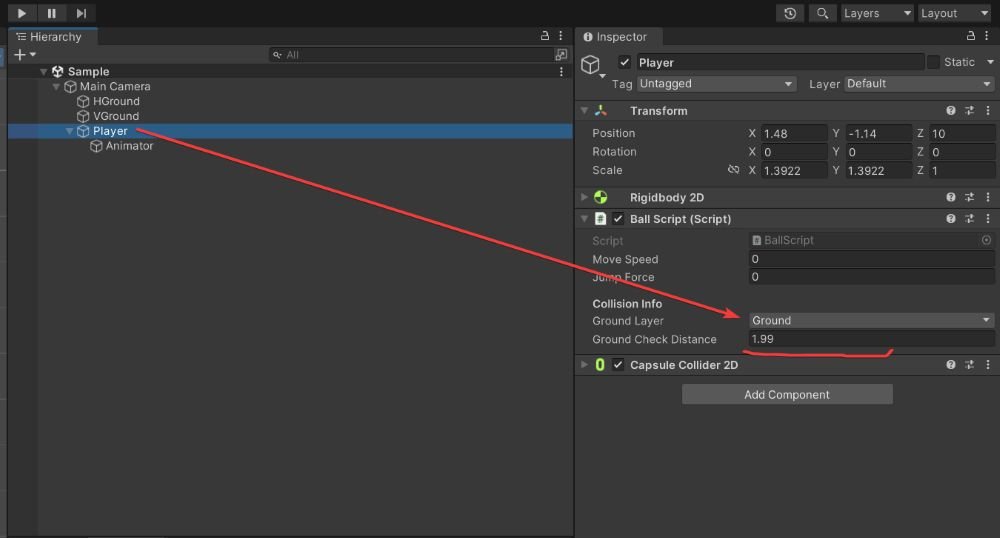
💻 Update Your C# Script
using System.Collections;
using System.Collections.Generic;
using UnityEngine;

public class BallScript : MonoBehaviour
{

    private Rigidbody2D rb;
    private Animator playerAnim;

    [SerializeField] private float moveSpeed = 5;
    [SerializeField] private float jumpForce = 10;

    private float xInput;

    private int facingDirection = 1;
    private bool facingRight = true;

    [Header("Collision Info")]
    [SerializeField] private LayerMask groundLayer;
    [SerializeField] private float groundCheckDistance;
    private bool isGrounded;

    // Start is called before the first frame update
    void Start()
    {
        rb = GetComponent<Rigidbody2D>();
        playerAnim = GetComponentInChildren<Animator>();
    }

    // Update is called once per frame
    void Update()
    {
        CheckInput();

        CollisionChecks();

        Movement();

        // Flip the player based on input direction
        FlipController();

        AnimatePlayer();
    }


    private void CollisionChecks()
    {
        isGrounded = Physics2D.Raycast(transform.position, Vector2.down, groundCheckDistance, groundLayer);
    }

    private void CheckInput()
    {
        // Get horizontal input
        xInput = Input.GetAxis("Horizontal");

        // Jump on Space key press
        if (Input.GetKeyDown(KeyCode.Space))
        {
            Jump();
        }
    }

    private void Movement()
    {
        // Apply horizontal movement
        rb.velocity = new Vector2(xInput * moveSpeed, rb.velocity.y);
    }

    private void Jump()
    {
        if (isGrounded)
        {
            rb.velocity = new Vector2(rb.velocity.x, jumpForce);
        }
    }

    private void AnimatePlayer()
    {
        // Animate player running
        bool isRun = rb.velocity.x != 0;
        playerAnim.SetBool("IsRun", isRun);
    }

    private void Flip()
    {
        facingDirection = facingDirection * -1;
        facingRight = !facingRight;

        transform.Rotate(0, 180, 0);
    }

    private void FlipController()
    {
        if (rb.velocity.x > 0 && !facingRight)
        {
            Flip();
        }
        else if (rb.velocity.x < 0 && facingRight)
        {
            Flip();
        }
    }

    private void OnDrawGizmos()
    {
        Gizmos.DrawLine(transform.position, new Vector3(transform.position.x, transform.position.y - groundCheckDistance));

    }
}
Please follow and like us:










Related posts:
 Unity in Practice 0014 – Unity 2D Dash and Dash Cooldown with Time.deltaTime
Unity in Practice 0012 – Blend Tree in Unity
Unity in Practice 0010 – Flipping a 2D Character Horizontally in Unity
Unity in Practice 0007 – Very First Unity C# Code to Move and Jump a 2D Ball
Unity in Practice 0008 – Encapsulation and Inspector Access with Unity’s [SerializeField]
Unity in Practice 0009 – How to Use Sprite Sheets in Unity for 2D Animation and UI
Unity Game Development – Systematic Learning Roadmap (2025 Edition)
Unity in Practice 0006 – Very first C# code to demonstrate how to capture input
Unity in Practice 0014 – Unity 2D Dash and Dash Cooldown with Time.deltaTime
Unity in Practice 0012 – Blend Tree in Unity
Unity in Practice 0010 – Flipping a 2D Character Horizontally in Unity
Unity in Practice 0007 – Very First Unity C# Code to Move and Jump a 2D Ball
Unity in Practice 0008 – Encapsulation and Inspector Access with Unity’s [SerializeField]
Unity in Practice 0009 – How to Use Sprite Sheets in Unity for 2D Animation and UI
Unity Game Development – Systematic Learning Roadmap (2025 Edition)
Unity in Practice 0006 – Very first C# code to demonstrate how to capture input